
Automatically send out courses to your end users with Auto Enrol
Learn how to turn automatic enrolment on or off for SMLearn courses. Auto Enrol allows you to enrol all your users in an automated, individualised security awareness training programme that covers all essential security topics.
What is Auto Enrol?
Auto Enrol is our automated security awareness training programme. You can switch it on or off from your platform settings.
- If Auto Enrol is ON, all users are sent training courses automatically
- If Auto Enrol is OFF, no courses will be sent out automatically by the platform
What happens when I first turn on Auto Enrol?
When you initially enable Auto Enrol, the Gap Analysis questionnaire will be sent immediately to all users. The results of this questionnaire are used to create an individualised training programme for each user, determining the order in which they receive course material. This Gap Analysis is a prerequisite: users must complete it before they can be enrolled in any Auto Enrol courses.
New users uploaded to the platform will also receive the questionnaire immediately.
Note: Users are not sent any courses until they complete their Gap Analysis questionnaire. This is a mandatory prerequisite for the Auto Enrol system to function properly.
What courses does Auto Enrol send to my users?
Auto Enrol includes the core infosec training courses - ranging from phishing and email security to working remotely and physical security. There are three difficulty levels: beginner, intermediate, and advanced, and each level consists of 12 courses.
Auto Enrol does not send out any compliance courses or information security courses outside the core topics, and it does not include any custom courses. It is not possible to use Auto Enrol to send courses in these topics or to send out custom courses; however, you can configure them as Compulsory Courses.
If a user has been enrolled on a course before, will Auto Enrol re-send it to them?
Auto Enrol takes previous course enrolments into account. If a user has been enrolled on and completed a course before, Auto Enrol won't send it to them again.
How can I let my end users know about Auto Enrol?
You can use our email template to communicate to your end users about their new security awareness training programme.
Can I exclude a course from Auto Enrol?
You can remove courses from Auto Enrol through the SMLearn options in the Platform Settings by adding the courses you wish to exclude to the Course Deny List. Any courses you add to the Course Deny List will not be included in Auto Enrol.

Can I exclude individual users from Auto Enrol?
Yes, you can exclude specific users from Auto Enrol without turning off the feature for everyone. This is useful if certain users need to follow a different training path, or if they shouldn't receive automatic course enrolments for any reason. To exclude a specific user from Auto Enrol:
- Navigate to the Users tab in SiberMate
- Locate the user you want to exclude
- Click the action button and select "Edit user"
- Scroll down and enable the option labeled "Exclude from auto-enrol"
- Save your changes. This will prevent the specified user from being auto-enrolled in courses, while allowing everyone else to continue participating in Auto Enrol as configured.
If a user does well in Gap Analysis, do they start on more advanced courses?
All users will receive all twelve beginner modules before Auto Enrol moves them onto the next stage of difficulty. Gap Analysis will dictate the order in which these beginner courses are sent to each user.
How often are Auto Enrol courses sent out?
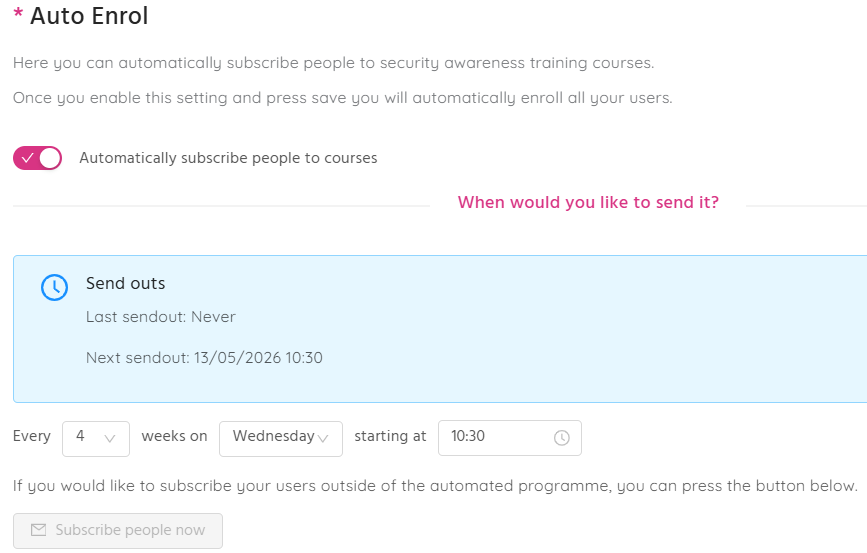
The recommended default is for courses to be sent out every 4 weeks. You can, however, configure the interval as you wish in the Auto Enrol settings, and also choose a weekday and time for courses to be sent out.
You can also use the 'Subscribe people now' button to immediately send out the next set of courses to your users.

What happens with users who fail to pass their courses?
You can set a minimum pass score for all Auto Enrol courses on the Auto Enrol settings page. Users who fail to meet the minimum pass score for their Auto Enrol courses will automatically be re-enrolled on their course to ensure they meet the required learning objectives.
How to turn on Auto Enrol
You can turn on or off automatic course send-outs from your platform settings.
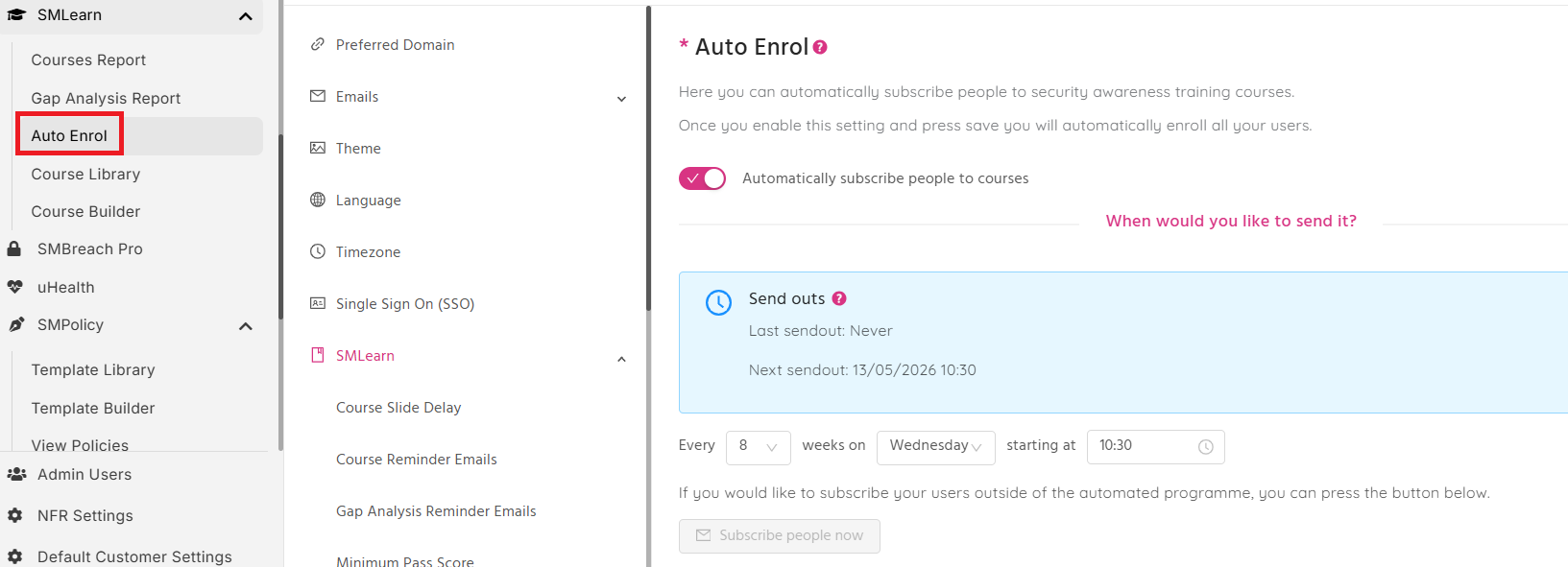
1. In the platform settings, click Auto Enrol under the SMLearn tab
You can find the platform settings by clicking the settings cog in the top-right of your screen in the SiberMate app, and then clicking Settings.
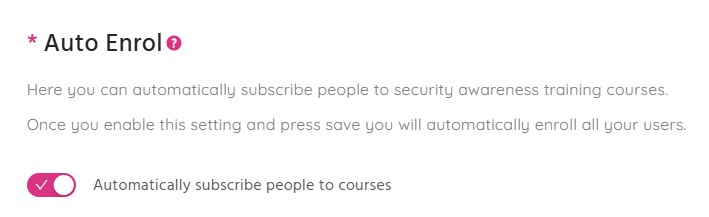
2. Switch on Auto Enrol using the toggle option
Alternatively, you can toggle off Auto Enrol here if you wish to turn it off.
3. Configure how often you want courses to be sent out automatically
You can select how many weeks you would like to be between send-outs, as well as which weekday and time you would like send-outs to be scheduled for.
4. Click the Save button to save your settings
Your settings will apply from the next scheduled send-out.
Where can I see what courses are due to be sent?
You can see which courses are scheduled to be sent out to users on the Users page. Click a user's name to open their individual pop-up window, and scroll down to 'Upcoming courses'. Any courses scheduled to be sent to the user through Auto Enrol will be listed here, along with the date when they will be enrolled.

Next steps
- Find out how to track your users' training performance