
How to import users with a CSV file
CSV import makes it easy to add multiple users to the platform at once. This article will show you how to import users from a CSV file, allowing you to conveniently add a large number of users to your SiberMate platform.
You may also want to learn how to:
Note: If you have enabled automatic course enrolment, any users added to your app will be immediately enrolled onto the first stage of their SMLearn programme.
Importing users from a CSV file
1. Find the Users page from the menu on the SiberMate platform.
2. Click Import Users on the top right side of the page.
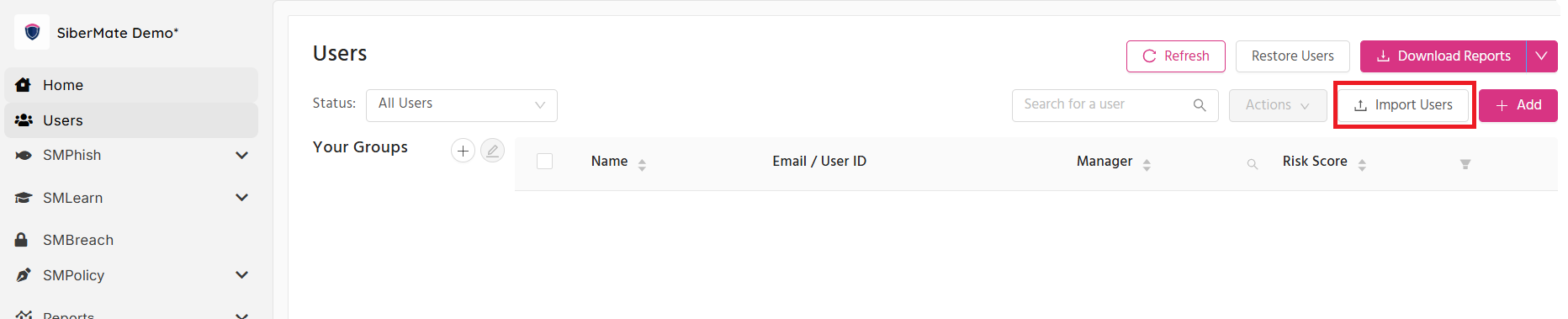
3. Click Upload via CSV in the 'Import Users' window

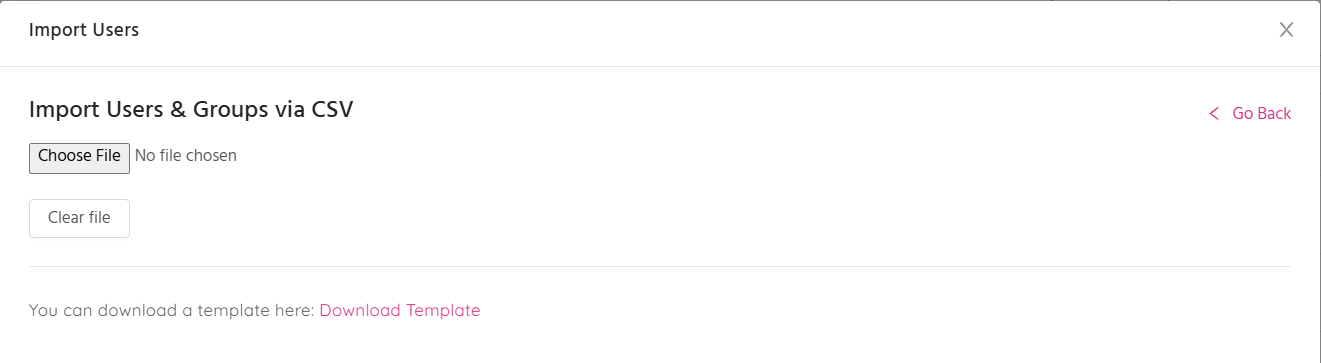
4. Choose the CSV file you wish to upload. You can also download a template for the CSV file to ensure that you have formatted it correctly.
Note: Groups won't be created in SiberMate through a CSV file import. If you have added users to groups in your CSV file, ensure that you have created matching groups in SiberMate before you upload the CSV file.
5. If the file can successfully be read, you will then be shown the new users that will be added to the app if you continue. View and confirm you want to add these users to the app.
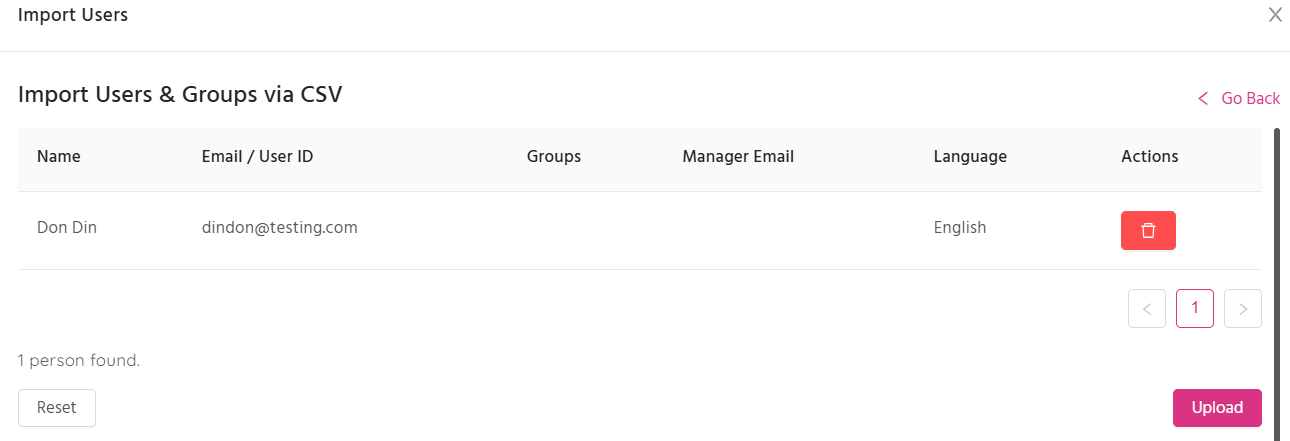
6. Click the Upload button to finish importing the users to the SiberMate platform.