
Manually enroll a user / group of users onto a SMLearn course
Learn how to manually enroll your users and groups of users onto a specific security awareness training course.
What you'll learn in this article:
- How to manually enroll a user onto a SMLearn course
- How to manually enroll a group of users onto a SMLearn course
Enrolling users onto a SMLearn course
Enroll users manually
To enroll users manually, head over to the Users tab on the SiberMate app.
- Where to find this: Access your SiberMate admin portal > Select the Users tab on the top navigation menu.
Here, you'll find all of the users and groups of users that you have imported onto the SiberMate platform.
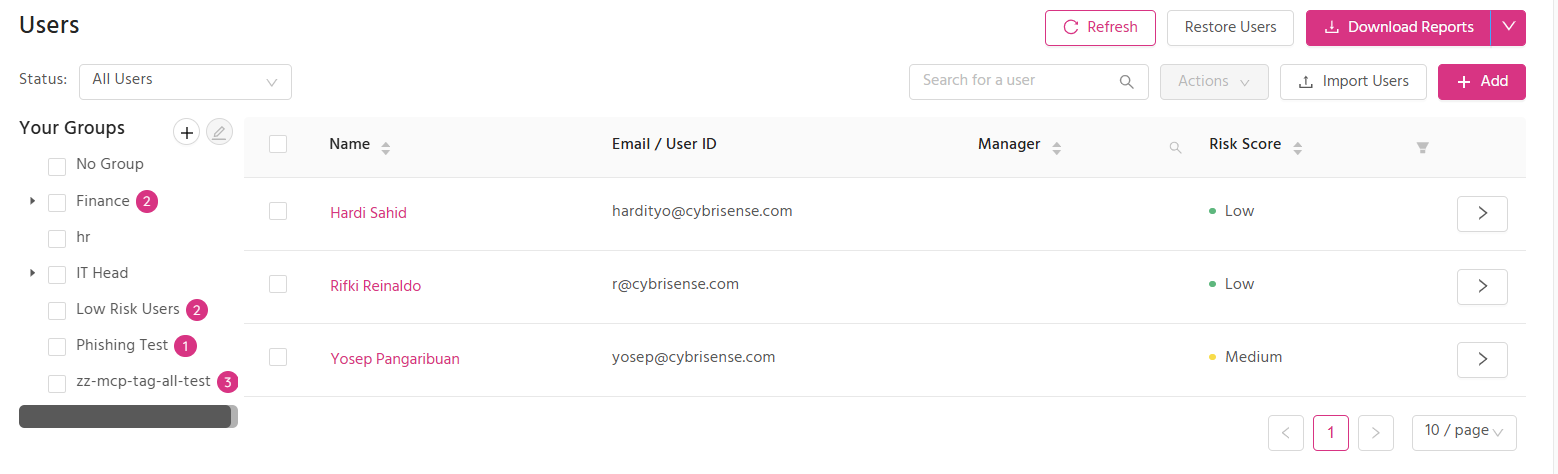
To enroll users onto their security awareness training program, check the box next to the user's name or group of the users that you wish to enroll, then select the Action drop-down menu.
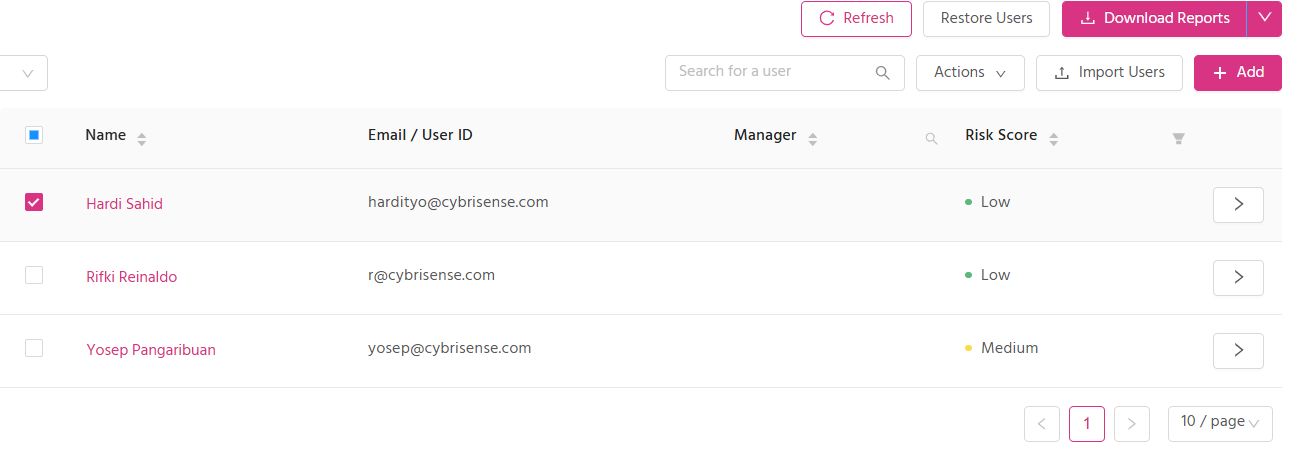
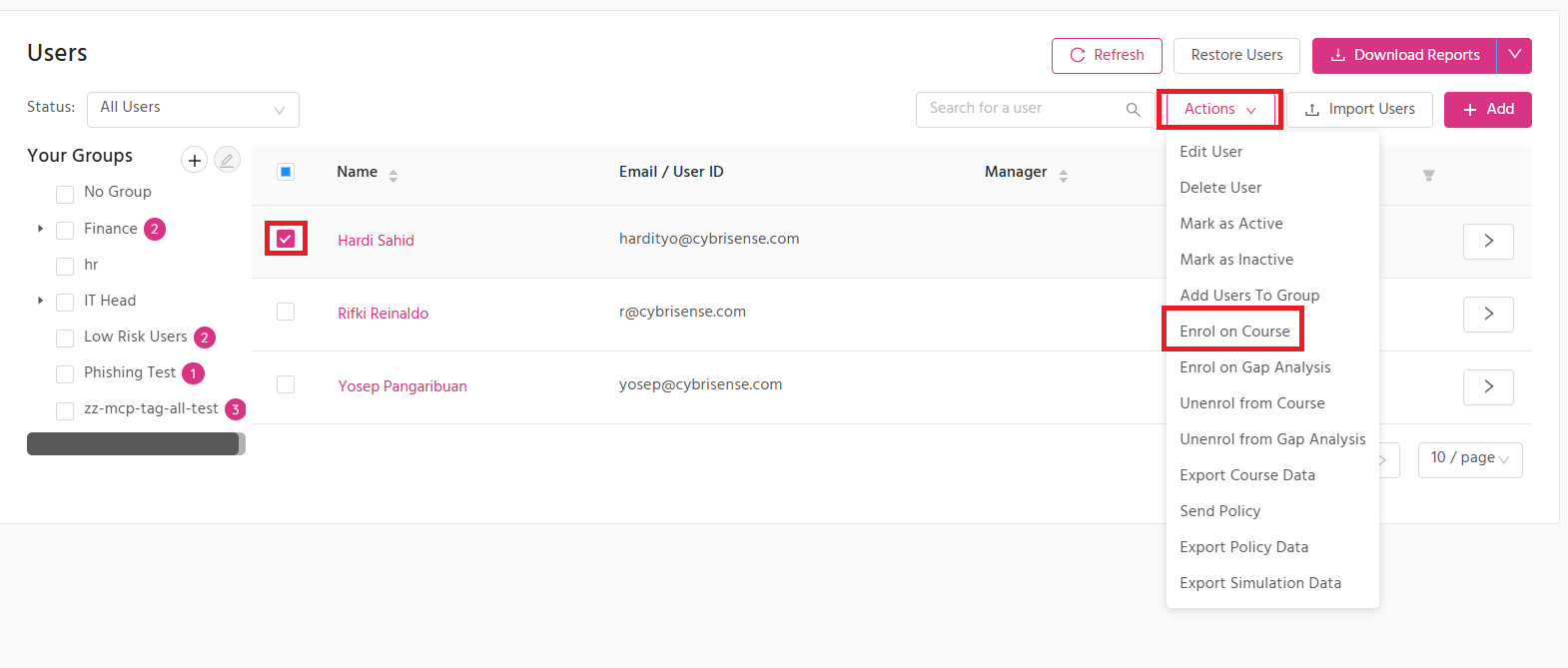
From these actions, select Enroll on Course. This will bring up a drop-down menu of SMLearn's subjects and courses.
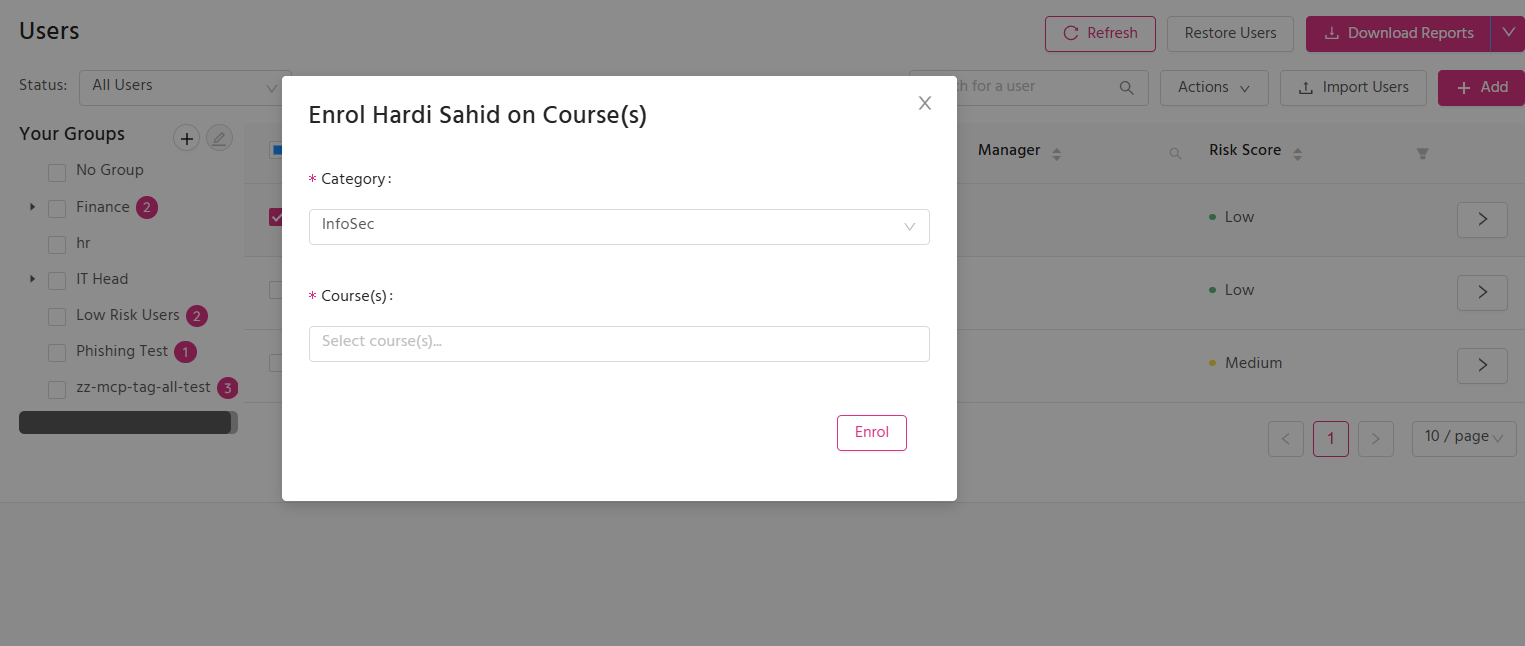
Simply select the relevant course, and select Enroll. Your user(s) will then receive their course invite via email.
Note: If the user has previously been enrolled onto this course, they will receive a course reminder invitation instead.