
How to assign Role Based Access
Learn how to assign the relevant permissions to new and existing admins.
With Role Based Access you can customize your admins’ permissions to access only the areas and features of the platform that are required for their role.
In this article you will learn:
How to customize access for new admins
In the SiberMate app, navigate to Admin Users in the side menu bar.
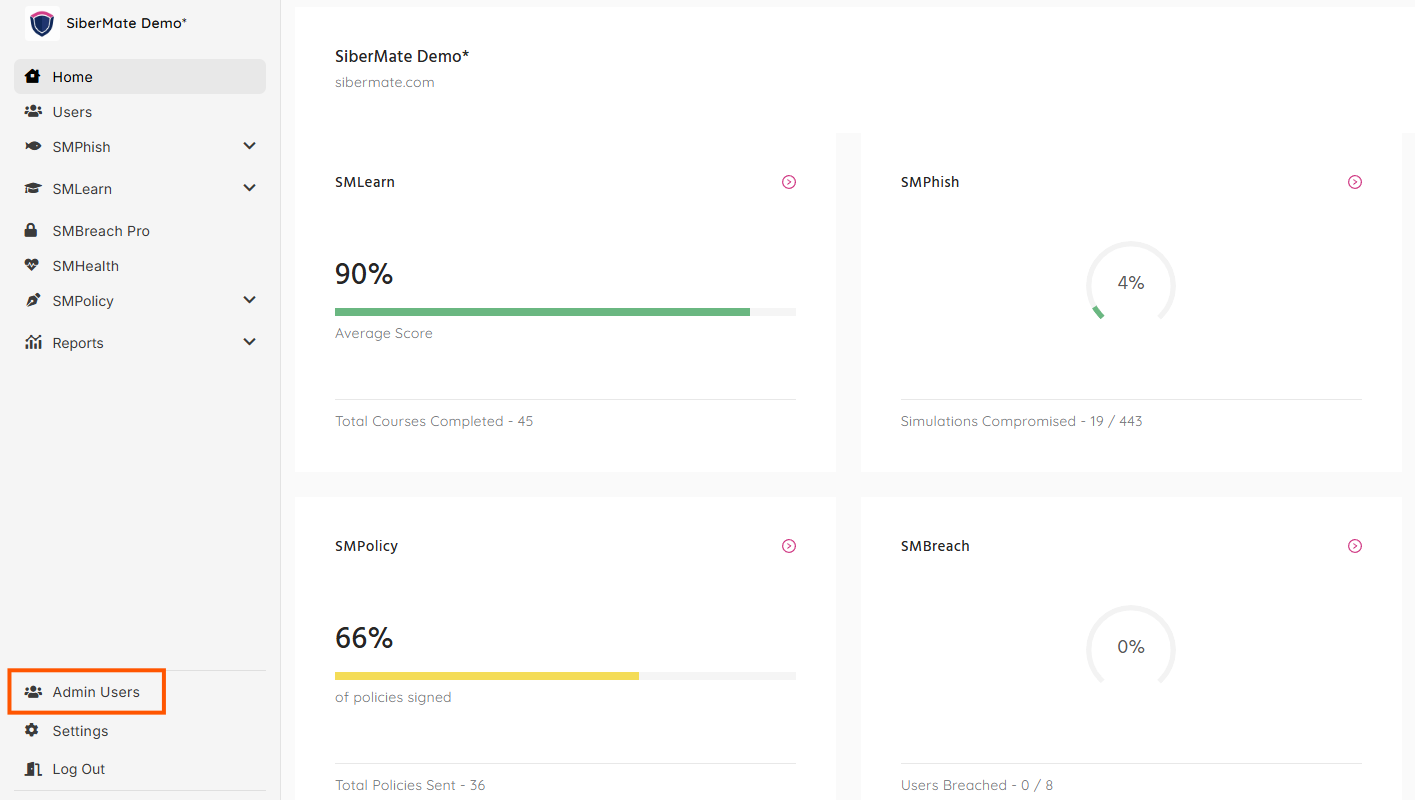
Click on the button to Add Admin User and complete the required fields.

Click on the second tab Admin Roles in the pop-up to assign the admin role for that admin.
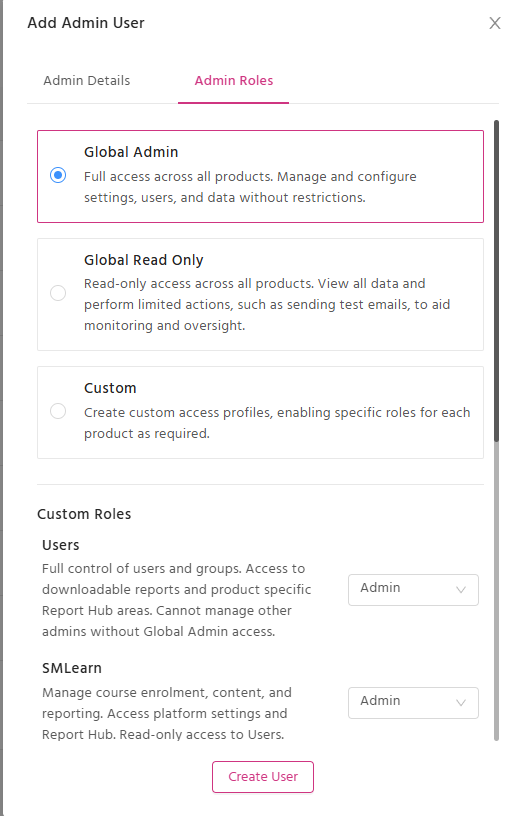
The roles Global Admin and Global Read Only apply to the whole platform.
The Custom role enables you to select which products to allow access to and what type of access to select for those products.
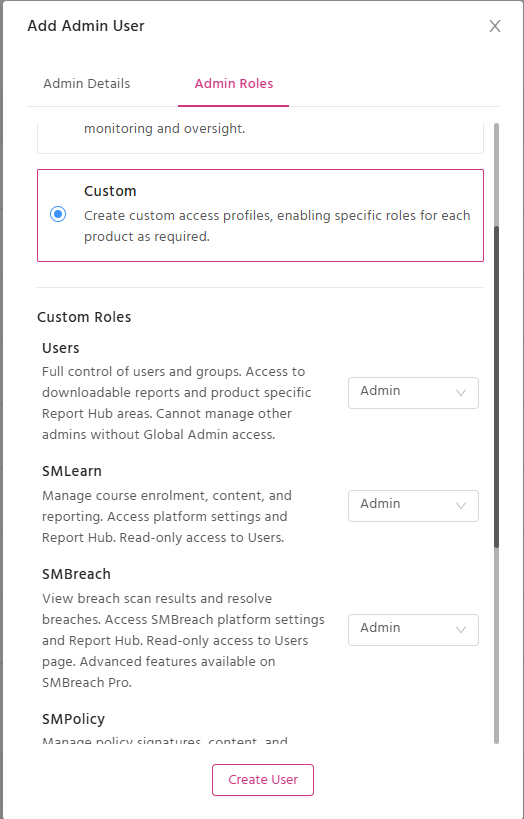
Once you have made your selection, click on Create User.
How to customize access for existing admins
In the SiberMate app, navigate to Admin Users in the side menu bar.
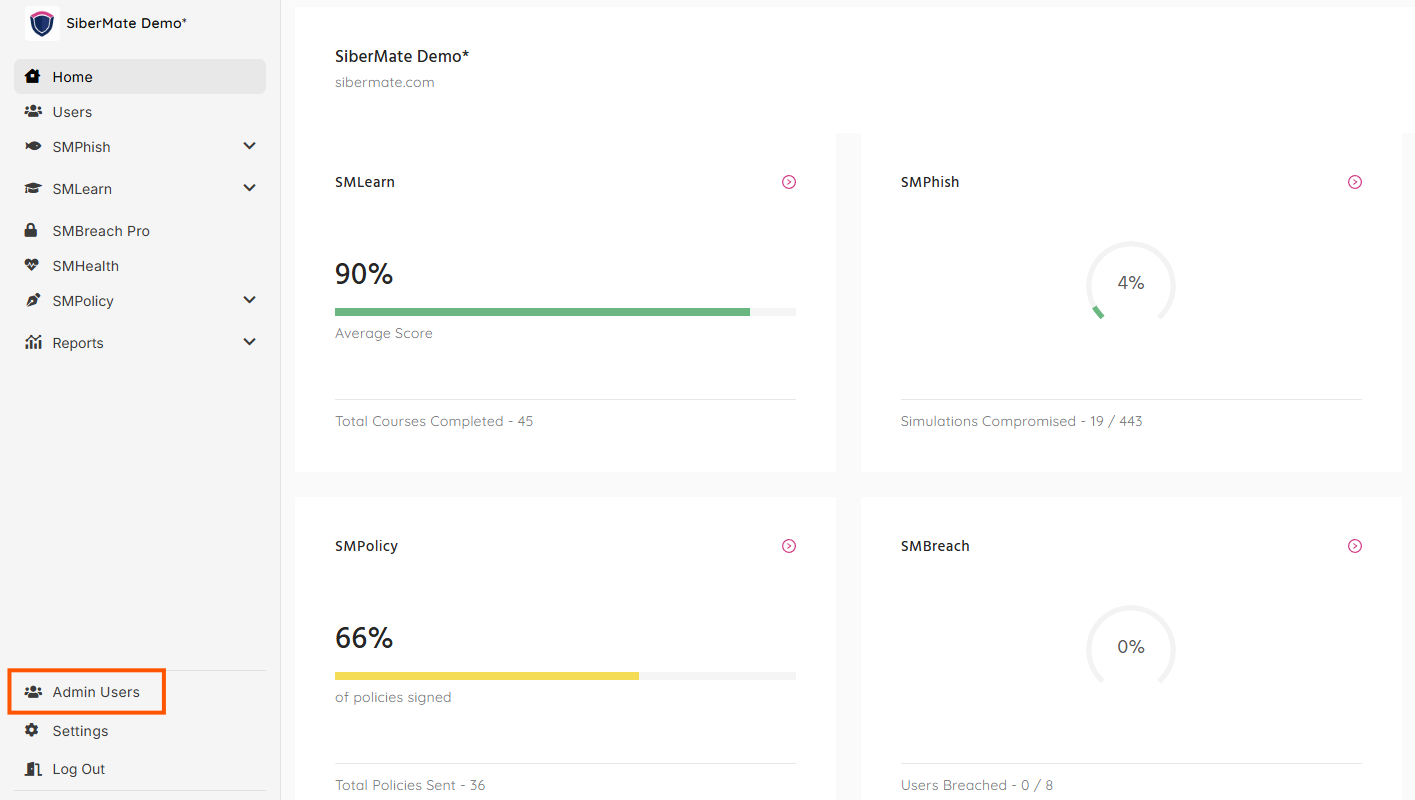
Click on Edit on the row of the admin user you wish to assign specific role based access to.

This will open a pop-up to edit the admin user. Click on the second tab Admin Roles in the pop-up to assign the admin role for that admin.
Once you have made your selection, click on Update User to save your changes for that admin user.
Next steps
- Learn more about Role Based Access
- Find out what product roles are available