
How to enable SMHealth for customers
Learn how to enable SMHealth Beta for individual customers within uService.
SMHealth is an account hygiene and risk-scoring tool that works alongside security awareness training. As an MSP, you can enable SMHealth for each of your customers directly from SiberMate Service. Once enabled, SMHealth becomes available within your customer's environment, where it continuously monitors user accounts and access privileges by connecting to Microsoft Entra ID or Google Workspace. By combining directory data, account settings, and security awareness activity, SMHealth generates a real-time Health Score at customer and user level, giving you clear visibility into risk levels and overall security posture.
1. In your MSP account, navigate to uService > Customers
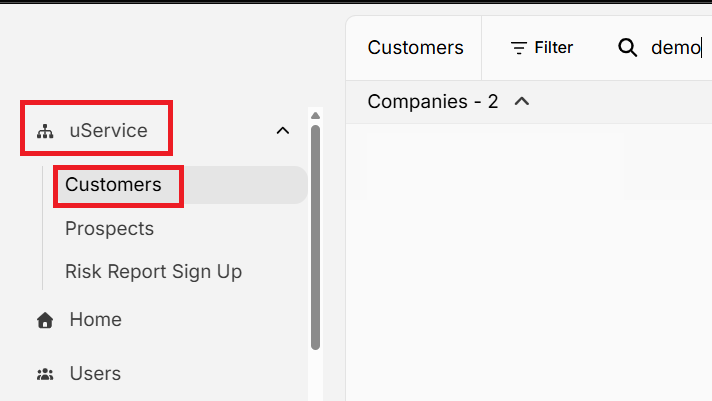
2. Locate the customer you want to enable SMHealth for
3. Click Edit next to the customer name

4. Under the Features tab, toggle SMHealth to on.
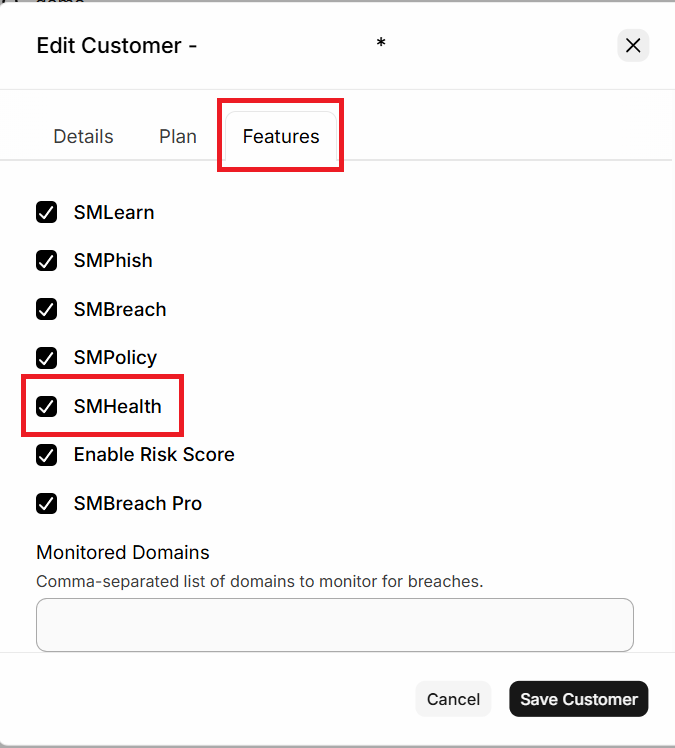
5. Click Save Customer to save the change.
SMHealth is now available for that customer. You will now need to connect SMHealth to your customer's Microsoft Entra or Google Workspace directory.
Note: The option to enable the SMHealth is available only to customers who are on a paid plan. It is not available for any customers you may have who are on the Free Trial plan.
Next Steps
- Discover SMHealth
- Learn how to connect SMHealth with Microsoft Entra
- Learn how to connect SMHealth with Google Workspace