
Introducing SMPolicy
What is SMPolicy? Find out all you need to know about SiberMate's new policy management tool.
What is SMPolicy?
SMPolicy allows you to easily create and manage your company's policies.
Having the right policies is essential for protecting your company. Policies help you set out your expectations for your employees in terms of security and their conduct in the workplace, as well as meeting compliance requirements and reducing risks.
With SMPolicy, you can:
- Establish rules, standards and best practices for your employees and workplace
- Ensure policies have been read and signed by all end users
- Contribute to a security culture and build a safe environment at your workplace
- Aid your efforts in achieving regulatory compliance
SMPolicy's key features:
- Pick ready-to-go policies for your company: With our library of security policies that meet industry standards you won't have to waste time writing policies from scratch.
- Customize policies or create your own: You can customize our policy templates as you wish, or upload entirely new ones to meet your needs.
- Upload your existing policies: Upload PDF files to transfer your existing policy set to the SMPolicy library.
- Easily send out policies to your end-users: Choose whether to send out policies to all users, individual users, or just to certain groups or departments, and ensure smooth roll out in just a couple of clicks.
- Manage signing of policies: Once you have sent out your policies for signing, you can see how many users have signed the policy straight from the SMPolicy dashboard.
Using SMPolicy
Where to find SMPolicy
You can find SMPolicy through the top menu bar inside the SiberMate app.
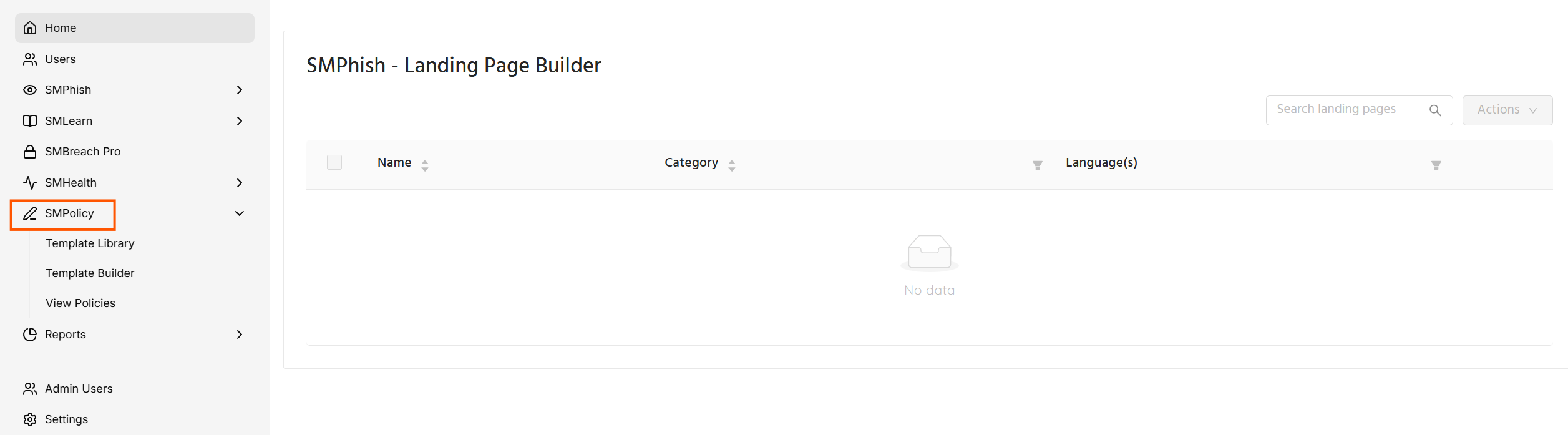
How to see the policy templates
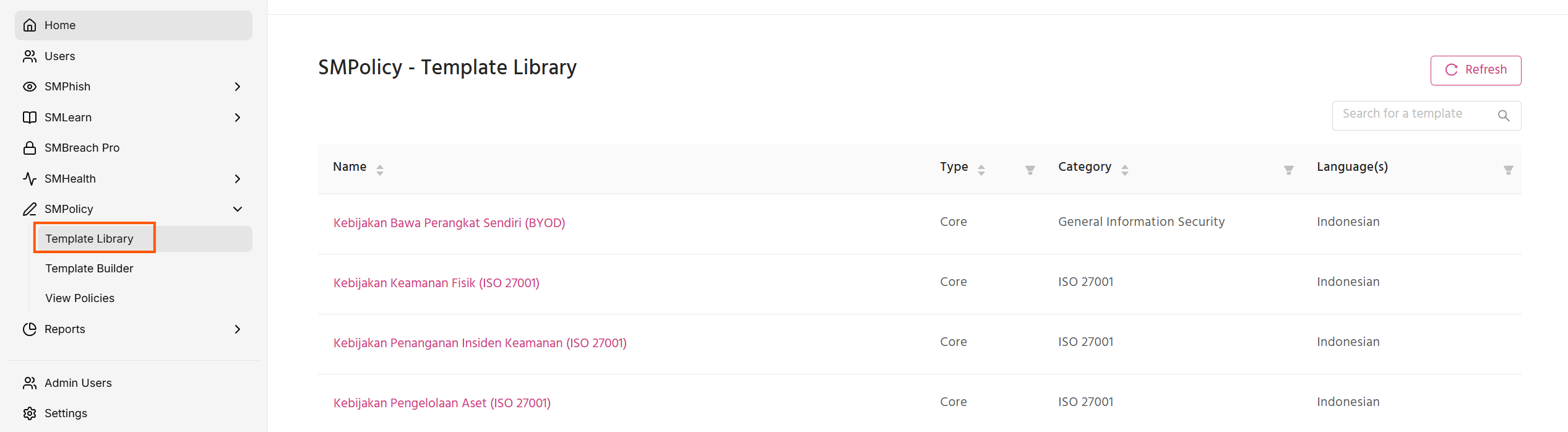
You can find all the pre-built policy templates on SMPolicy by clicking Template Library from the SMPolicy drop-down in the menu bar.
- Read more about the Template Library
How to create a new policy
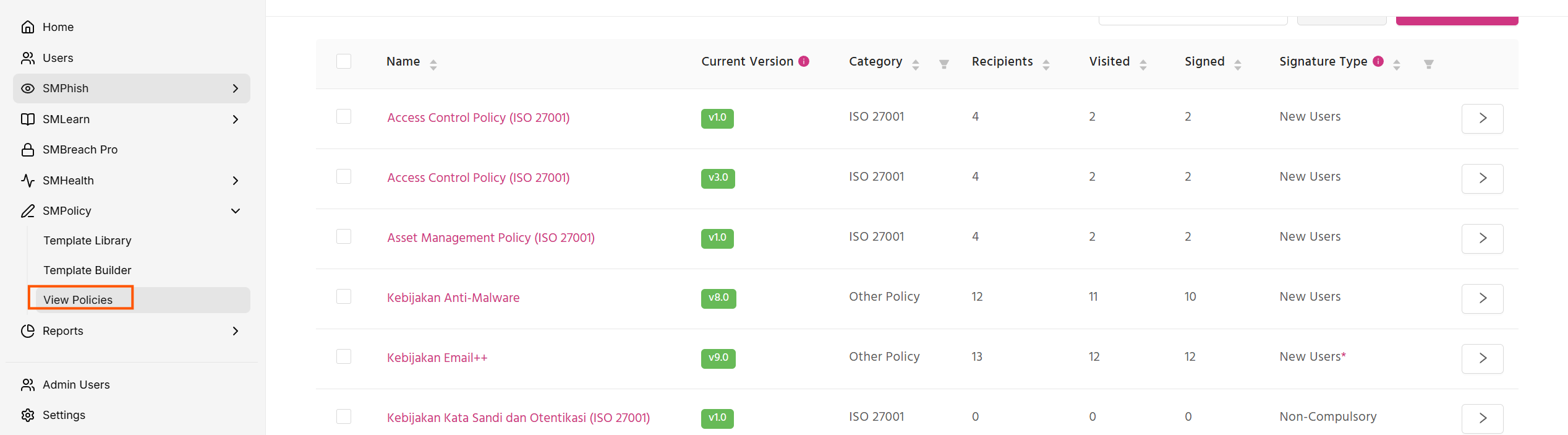
To create a new policy, you will first want to head to the View Policies page.
On the View Policies page, click the Create Policy button.
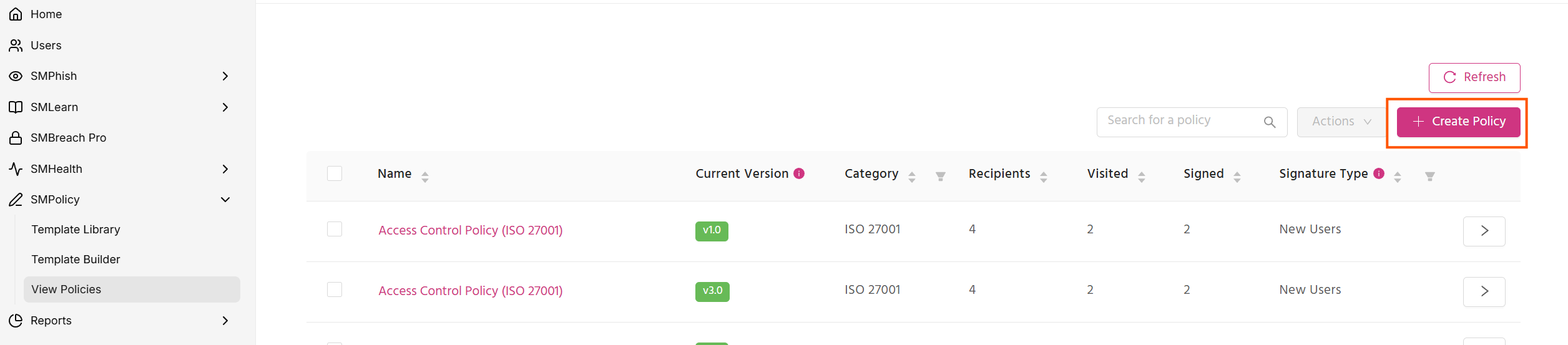
You will then be able to choose whether you want to create a policy from one of the pre-built templates or to write it from scratch.
- Read more about creating policies with SMPolicy
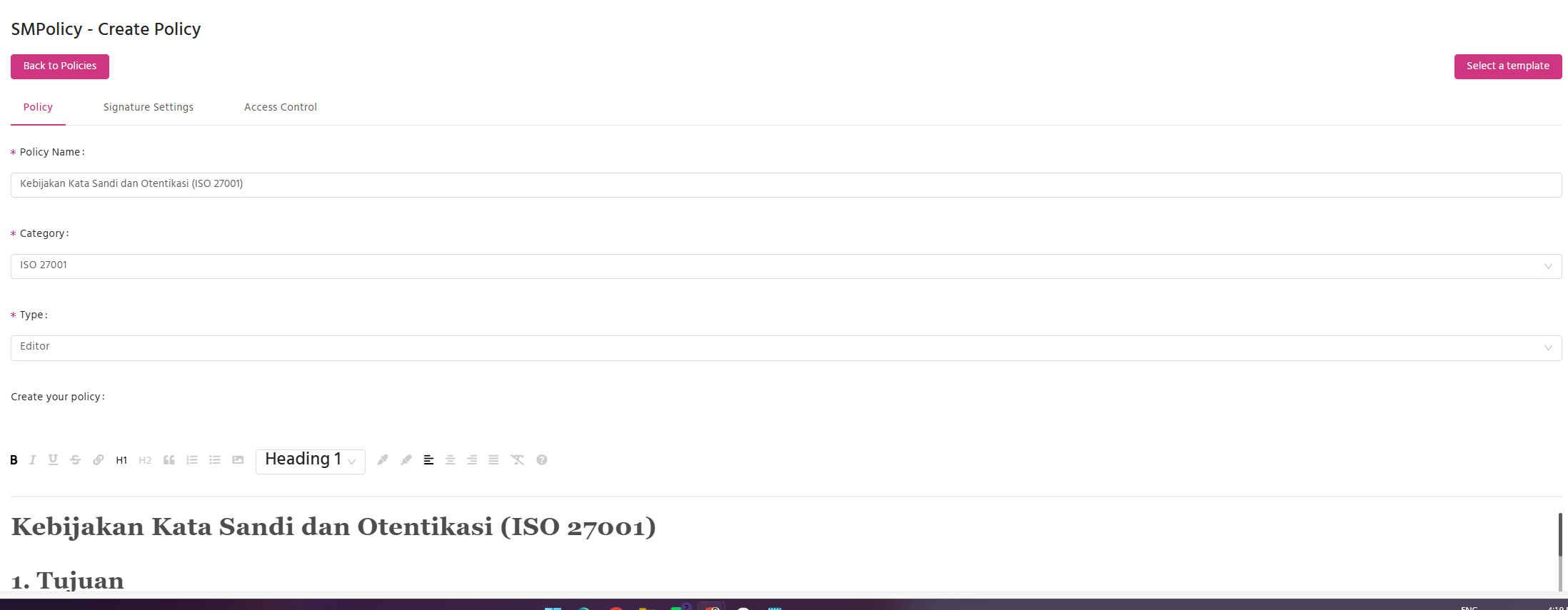
The Policy Editor
You can write and edit policies using the Policy Editor. The editor allows you to format text, insert hyperlinks and rename your policy as you wish.
Viewing and sending out your policies
Policies that you have created - whether custom or from the template library - will appear on the View Policies page.
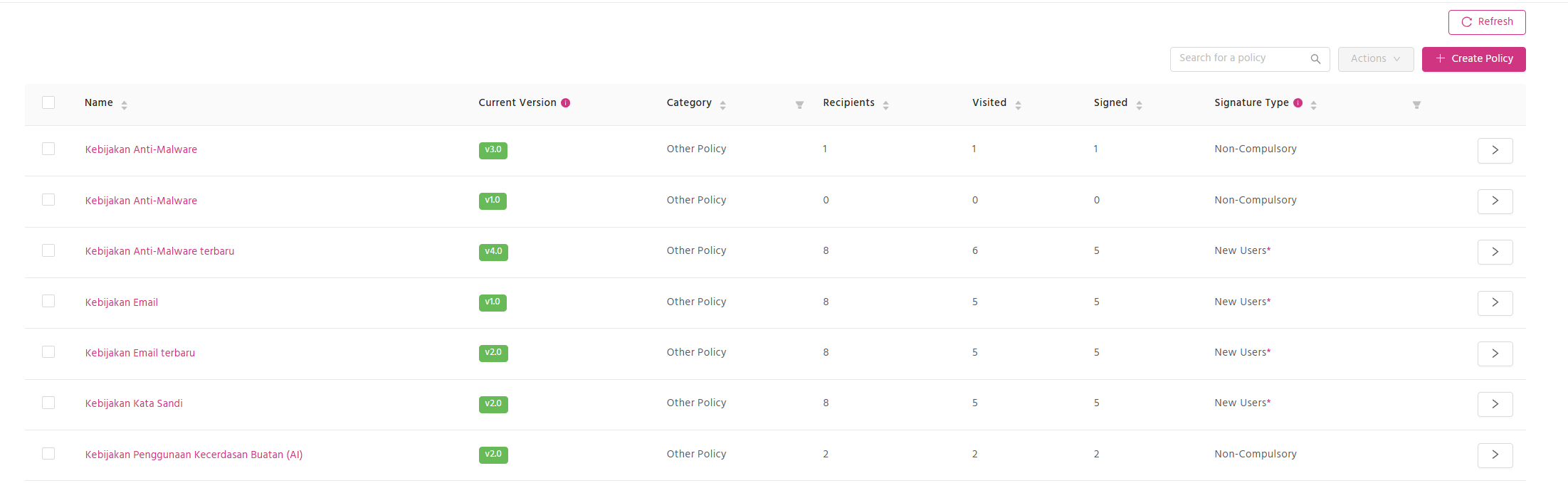
Use the action button to the right of any policy to edit, duplicate, delete, send out the policy, upload policy signatures and export policy data. You can also select multiple policies using the check boxes on the left, and then use the top Action button to send out multiple policies at once.
- Read more about sending out policies to your end users.
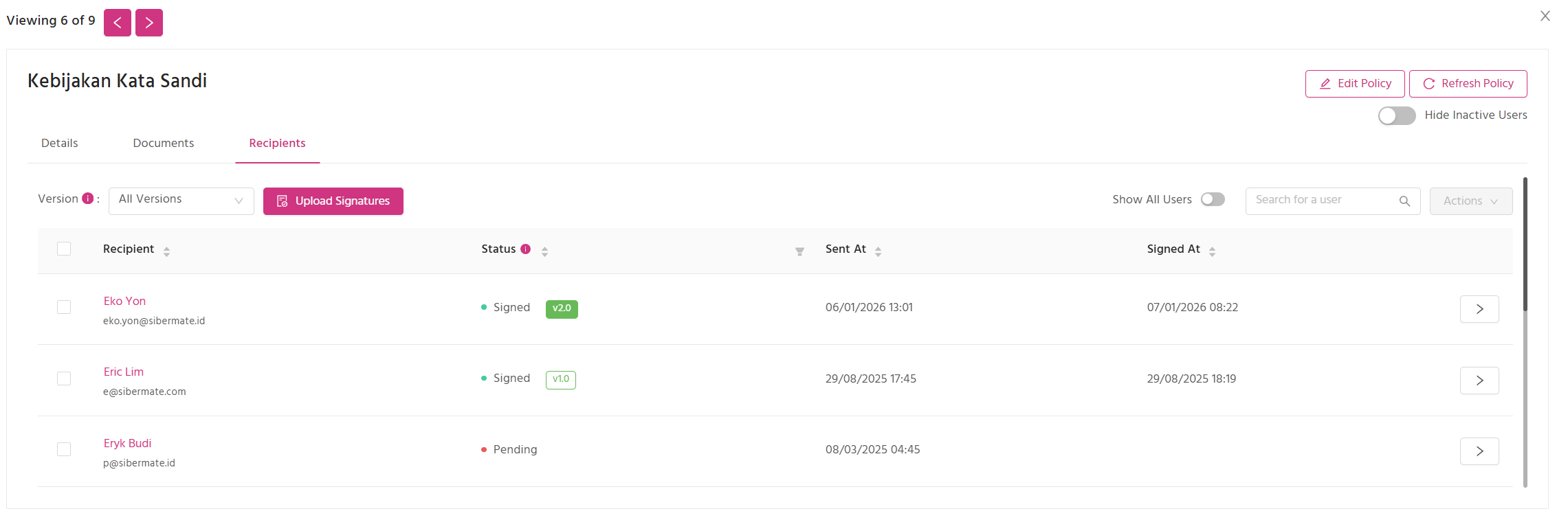
How to see who has signed a policy
You can view who has signed a policy by going to the View Policies page and then clicking on the name of the policy. This will open the policy details window. Click the Recipients tab to see who has signed the policy.
Next steps
- Find out which policy templates are available on SMPolicy
- Learn how to create a new policy with SMPolicy
- Learn how to send out policies to your end users